
Last updated on 20 September 2026
Quick installation of your eSIM
1. open your eSIM mail from povnomad (with the QR code)
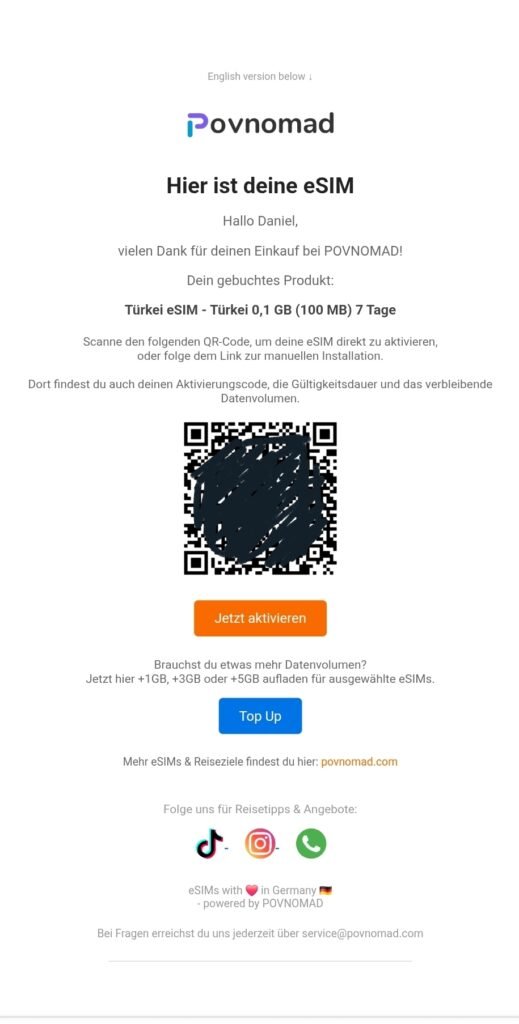
2. now press and hold the middle button at the bottom (main menu) for ~3 seconds

3. the following Google menu opens (see image)
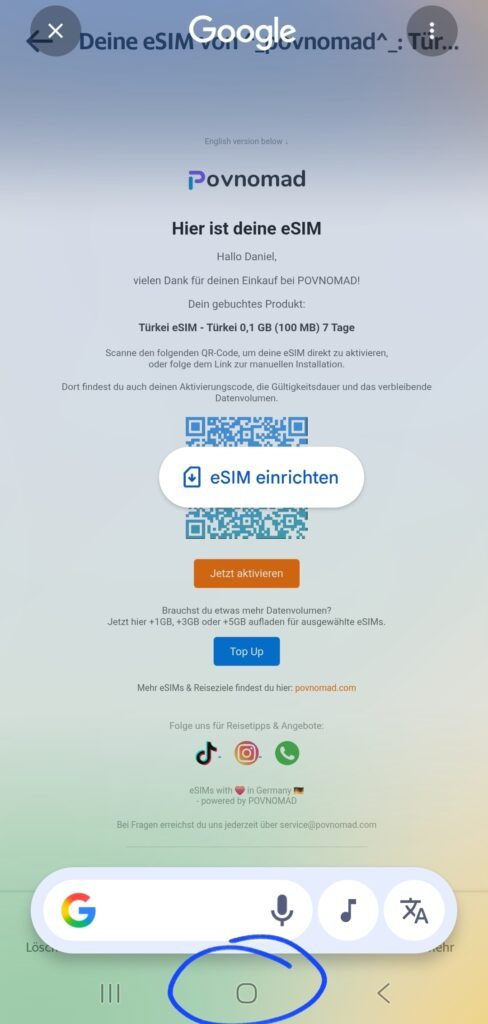
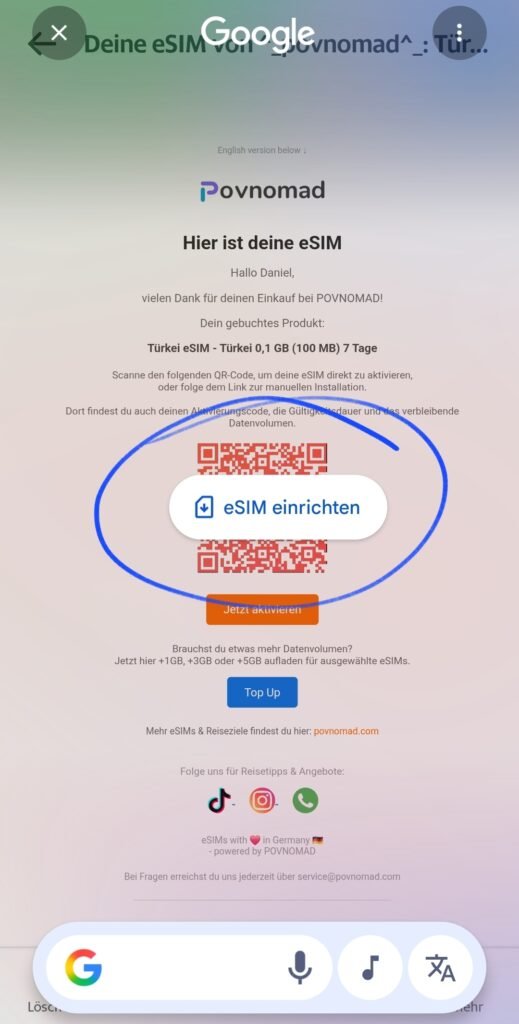
4. now click on “Set up eSIM” and follow the menu
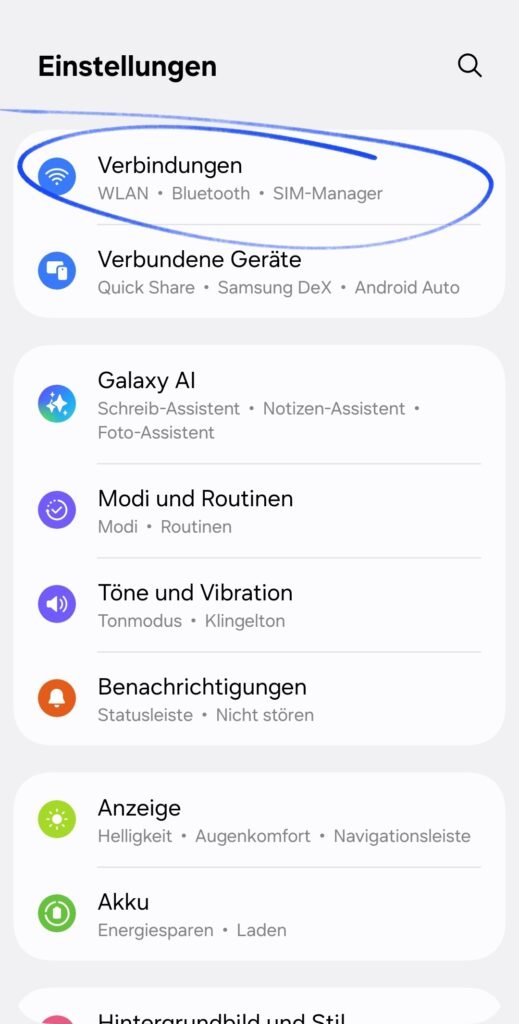
5. after installation, roaming must be activated for the eSIM. Open Settings –> Connections
6. now go to “Mobile networks”
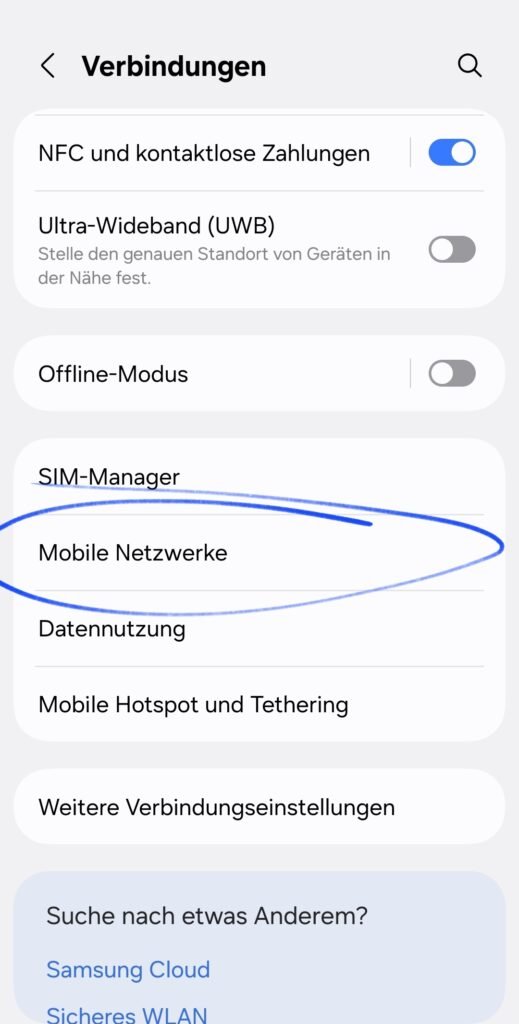
7. activate roaming for your eSIM
(Attention: not for your normal SIM card – only for the data eSIM from povnomad)
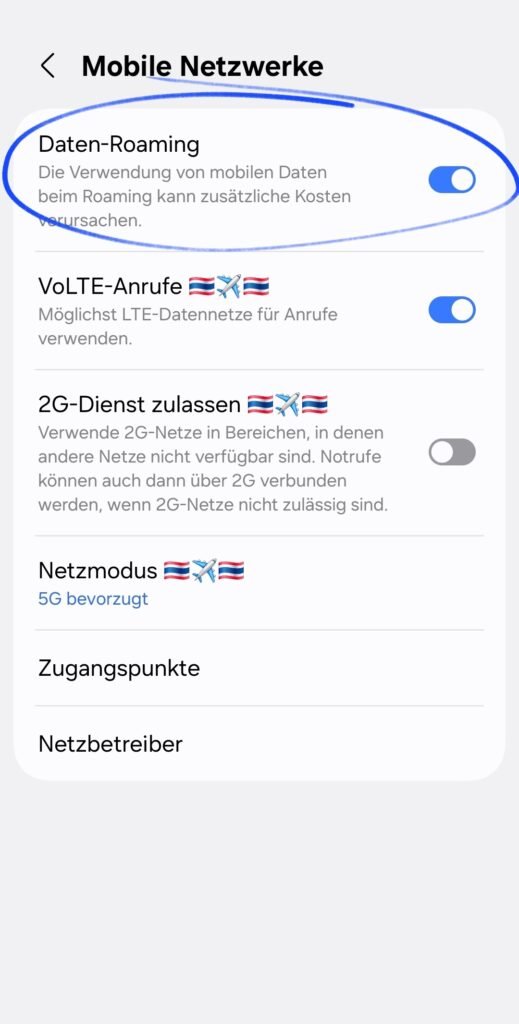
8. now activate “Mobile data” – and you’re done!
If you haven’t already done so, activate mobile data for your eSIM from povnomad. And that’s it! You are connected!
Is it still not working? Possible sources of error:
- You are not yet in the country / region of the eSIM (e.g. you buy a Turkey eSIM before your vacation, install it on your device – but have no reception? –> Only when you land do you get reception to our partner network, then it works)
- Check whether the following has been activated: 1) Mobile data for the eSIM 2) Data roaming for the eSIM
- Check whether the APN settings are entered correctly. At the top you will find the APN settings tab (e.g. for Android: here the APN for eSIM Turkey or Georgia must be entered manually – it is “isp”).
- Select our partner network manually: Settings –> Mobile networks –> Network operators –> Manual search –> You can find our network partner in the povnomad eSIM mail under the “Activate now” button
- Contact us for more support: By email service@povnomad.com or Whatsapp
Installation instructions
1. open the settings of your Android / Samsung smartphone, then click on the “Connections” tab
2. now go to “Sim-Manager”
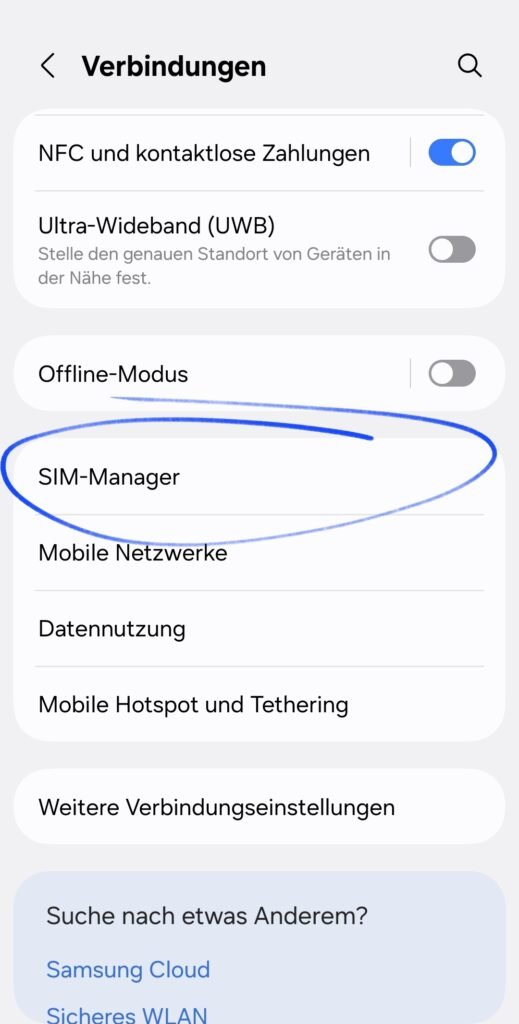
3. search for the item under eSIMs and click on “Add eSIM”
Important for installation: To scan the QR code and download the eSIM data, you need a WLAN / mobile phone connection. We recommend scanning the QR code and installing the eSIM before arriving in the destination region so that the eSIM can be switched on immediately upon landing and the connection to the network is established.
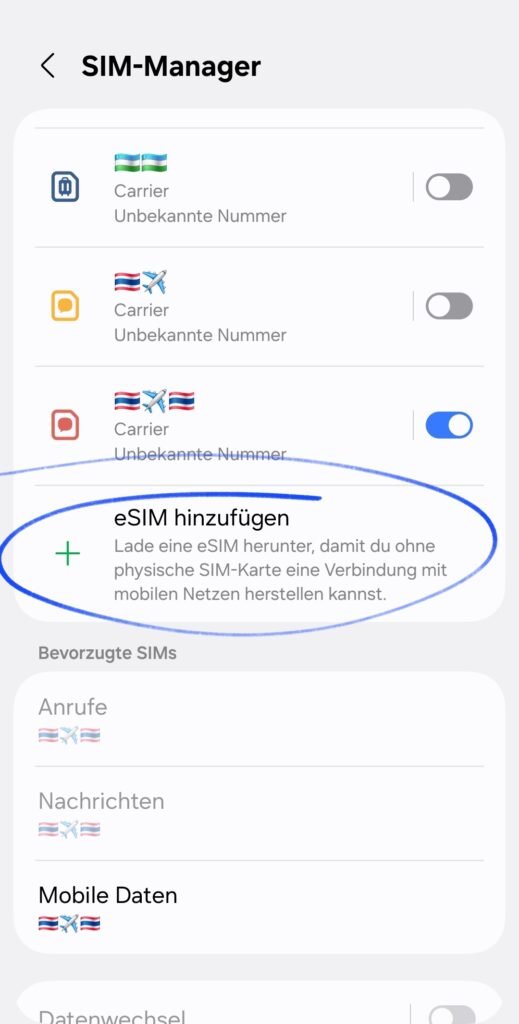
4. select “Scan QR code” here and scan the QR code received from the email or from the installation link
Alternatively: Click on Scan QR code and then on “Enter activation code” to enter the eSIM data manually. You will also find the activation code in the installation link.
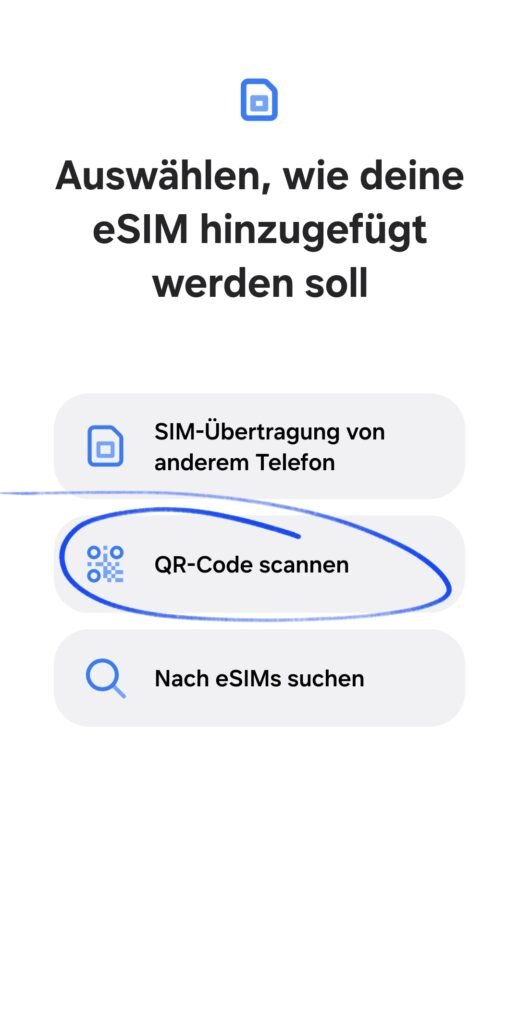
5. after installation, roaming must be activated for the eSIM. Open Settings –> Connections
6. now go to “Mobile networks”
7. activate roaming for your eSIM
(Attention: not for your normal SIM card – only for the data eSIM from povnomad)
8. now activate “Mobile data” – and you’re done!
If you haven’t already done so, activate mobile data for your eSIM from povnomad. And that’s it! You are connected!
Is it still not working? Possible sources of error:
- You are not yet in the country / region of the eSIM (e.g. you buy a Turkey eSIM before your vacation, install it on your device – but have no reception? –> Only when you land do you get reception to our partner network, then it works)
- Check whether the following has been activated: 1) Mobile data for the eSIM 2) Data roaming for the eSIM
- Check whether the APN settings are entered correctly. At the top you will find the APN settings tab (e.g. for Android: here the APN for eSIM Turkey or Georgia must be entered manually – it is “isp”).
- Select our partner network manually: Settings –> Mobile networks –> Network operators –> Manual search –> You can find our network partner in the povnomad eSIM mail under the “Activate now” button
- Contact us for more support: By email service@povnomad.com or Whatsapp
Check APN settings and correct if necessary
1. open settings in your smartphone menu, then “Connections”
2. click on the “Mobile networks” tab
3. search for the item “Access points”
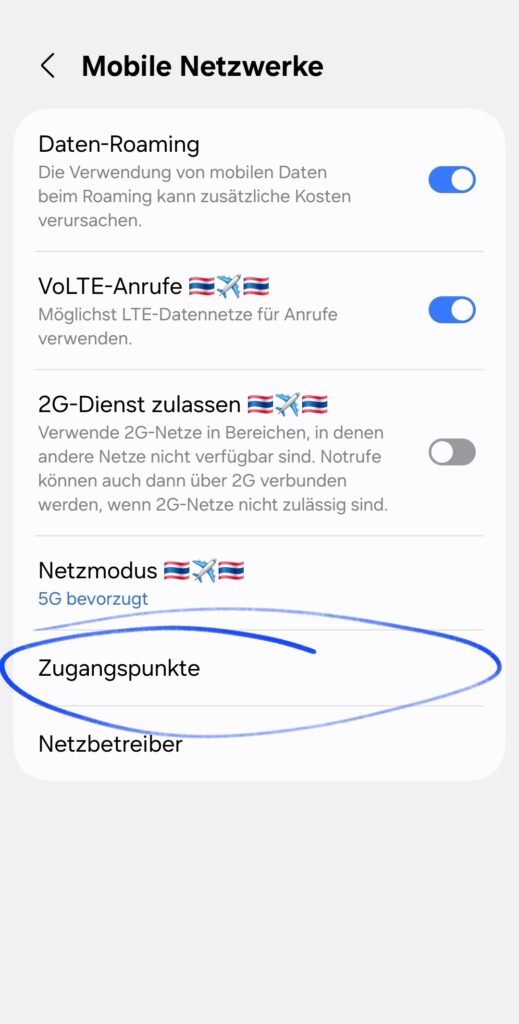
4. check whether an access point already exists
- Is there no access point yet?
–> Click on the ” + ” at the top right and add an access point. You will find the access point for your eSIM in the installation link.
- Is an access point available?
–> Check whether the access point has been selected (blue circle = selected access point)
–> Check whether the access point is correct and the APN matches the one in the installation link. Follow the instructions here.
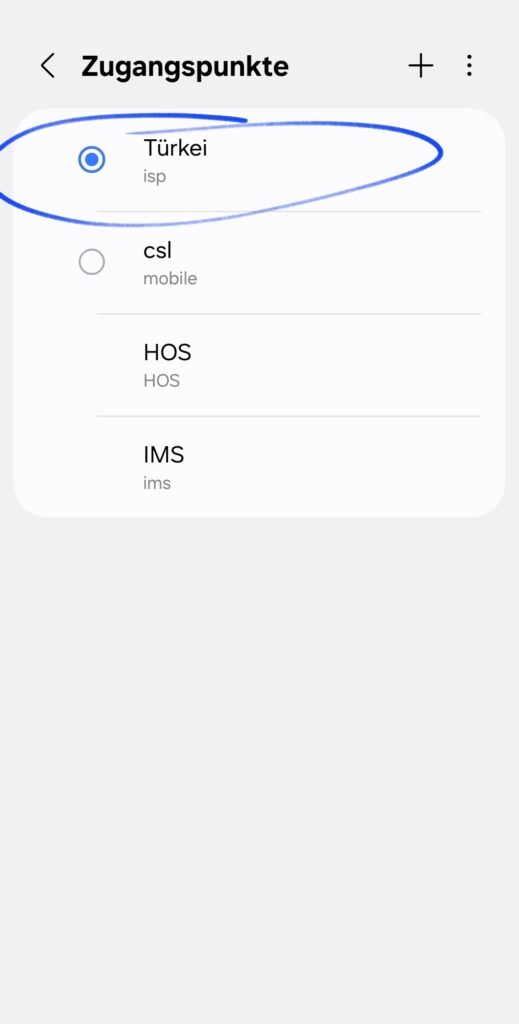
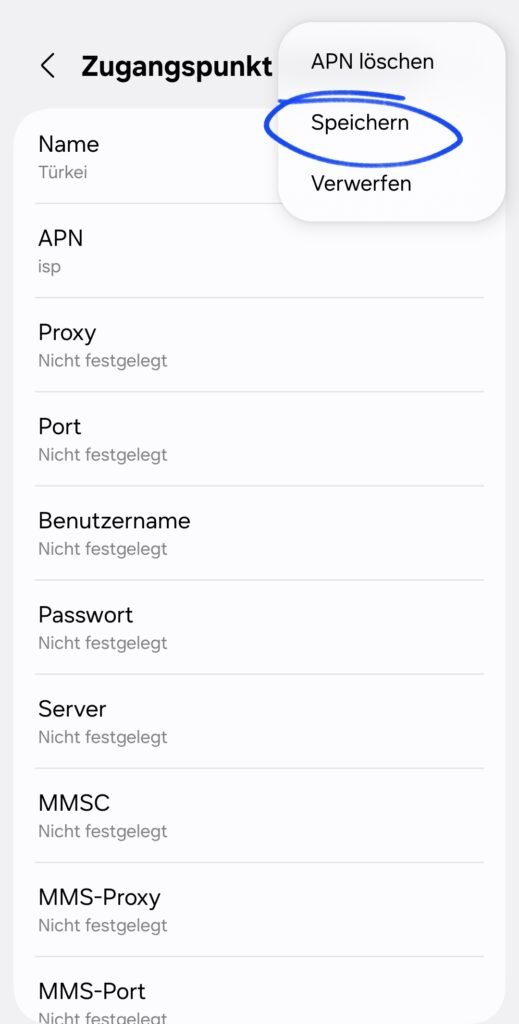
5. click on the access point to check and edit the APN (e.g. Turkey in the previous image)
Check whether the APN matches the one from the installation link. e.g. the APN for the Turkey eSIM is currently “isp”. If this is entered correctly, everything fits. If not, please add it.
Important: Don’t forget to save! –> click on the three little dots at the top right, then on “Save”
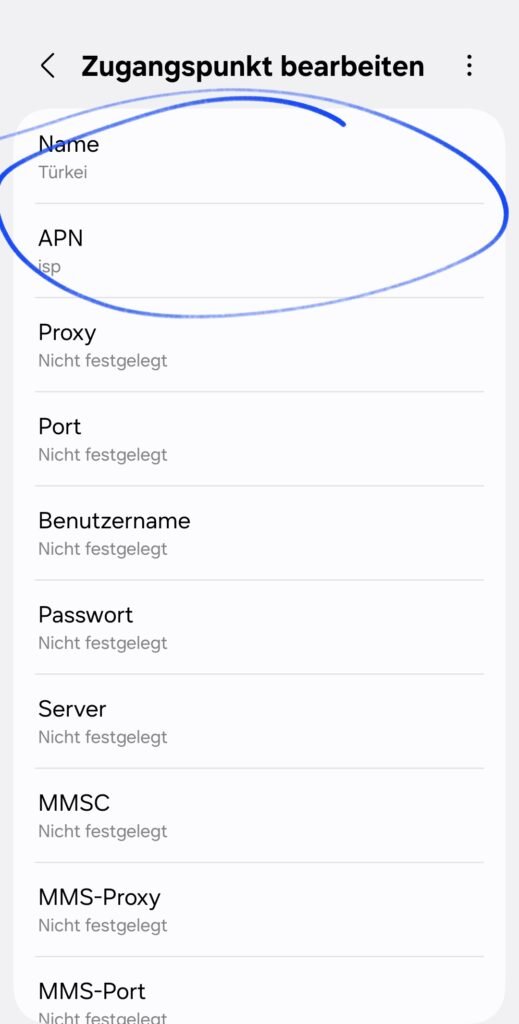
6. do not forget to save. Done!
Questions and answers about the povnomad eSIM
1. is my device eSIM compatible?
To check if your Android smartphone is compatible, try the following: Call the test code #06#. The test code will then immediately show you the technical details of your smartphone. If the eSIM identification number (EID) is displayed and present, this indicates that your device can use eSIM.
Alternatively, check the settings to see if the “Add eSIM” function is available or contact the manufacturer.
2. how is the reception with the eSIM?
In the article description or after the purchase in the installation link you will find the details that are important:
- Details on 3G / 4G / 5G speed. Most of our eSIMs are 4G/5G ready and therefore offer fast speeds.
- Details on the network partner of the eSIM target region –> Look e.g. in advance here to see how the network of our local partner is developed. Select the country, then the povnomad partner network.
Advantage of povnomad eSIM: We often have several partner networks on site! Then you can freely choose which reception is better. So you are always best connected – even where some have no network!
3. do I need an APP to buy or install the eSIM?
At povnomad eSIM, we attach great importance to convenience and privacy. This includes the quick purchase and installation of our eSIMs without unnecessary memory consumption for a separate app.
Simply buy your eSIM online at povnomad.com – you will receive the QR code for installation by e-mail, as well as the installation link for the eSIM for further information such as data volume, remaining time or network operator. All information simply by e-mail – more storage space for your vacation photos!
Frequently asked questions about eSIM installation
How do I install the eSIM using the QR code from the povnomad email?
Open the eSIM email from povnomad with the QR code, go to Settings, then Connections, and open the SIM Manager. Select “Add eSIM” and scan the QR code to set it up.Should I install the eSIM before my trip?
Yes, scan the QR code and install the eSIM before you arrive in the destination region. You need WLAN or a mobile connection to download the eSIM data, so it’s ready to switch on the moment you land.What should I do if the QR code won’t scan or there’s no connection?
Check that mobile data and data roaming are both activated for the eSIM and that the APN settings match the installation link. You can also enter the activation code manually or pick the partner network yourself through the network operator search, and support is available by email or WhatsApp for anything else.When does my eSIM’s validity actually start?
Your validity period only starts once the eSIM connects to a network in your destination for the first time. As long as you’re not yet in the eSIM’s country or region, you won’t get any reception. The connection to the partner network only kicks in once you land, and that’s when the eSIM starts working.Is my smartphone eSIM compatible?
Dial the test code *#06# to see your device’s technical details. If an eSIM identification number (EID) shows up, your smartphone supports eSIM.Popular eSIM destinations
📱 Easier with the POVNOMAD app
The easiest way to install and manage your eSIM is the POVNOMAD app: all about the app.
Download directly: POVNOMAD app on Google Play.
More help
Not sure how much data you need? Use the data calculator.


